Nextcloud with Euro-Office on Proxmox: one VM, Docker Compose and a Cloudflare Tunnel
A family cloud with online Word, Excel and PowerPoint editing: a Debian 13 cloud-image VM, Nextcloud, PostgreSQL, Redis and Euro-Office in Docker Compose, published through a Cloudflare Tunnel with no open ports, plus the three pitfalls that cost the most time.
Before you start
- A Proxmox host with about 4 cores and 8 GB RAM free, and space for a data disk.
- A domain on Cloudflare with a Cloudflare Tunnel already running in your LAN.
- An SSH client on your PC (built into Windows 10/11).
- Fill in Your values below and every command on this page updates to match.
Your values
Fill these in and every command below updates to match. Nothing is sent anywhere.
Run this at your own risk. These steps worked on my hardware; yours may differ. Take a backup first, read each command before running it, and see the disclaimer.
A family cloud that works like Google Drive and Docs, on your own hardware: Nextcloud for files, calendars and photos, plus Euro-Office so Word, Excel and PowerPoint files open and edit in the browser. Both are reachable from anywhere through a Cloudflare Tunnel, with no port opened on the router.
The whole stack runs in one Debian 13 VM on Proxmox with Docker Compose: Nextcloud, PostgreSQL, Redis, a cron container and the Euro-Office document server. Files live on their own virtual disk, so the system disk stays small and the data disk can grow on its own.
This guide follows a build from scratch, including the three things that cost the most time: Euro-Office crashing on start, the editor refusing to open through Cloudflare, and one occ command that quietly locked out the monitoring.
Why a VM and not an LXC container? Docker inside an unprivileged LXC works, but needs nesting and keyctl tweaks, and Proxmox updates have broken it before. A small VM is boring in the good way, and the document server is heavy enough that the few hundred MB a VM costs do not matter.
What you need
- A Proxmox host with about 4 cores, 8 GB RAM free for the VM, and space for the data disk.
- A domain on Cloudflare and a Cloudflare Tunnel already running in your network (cloudflared in a container or VM). The tunnel just needs two more public hostnames.
- An SSH client on your PC. Windows 10/11 have one built in.
Shells used in this guide, so you always know where a command goes:
| Prompt | Where |
|---|---|
PS C:\> |
PowerShell on your PC |
root@proxmox |
The Proxmox host shell (web UI → node → Shell, or SSH) |
admin1@nextcloud |
Inside the new VM, over SSH |
Step 1: An SSH key on your PC
The Debian cloud image has no password login over SSH, only keys. Create one on your PC (PS C:\>), and press Enter at every question:
ssh-keygen -t ed25519
Get-Content $env:USERPROFILE\.ssh\id_ed25519.pub
Copy the one line it prints (ssh-ed25519 AAAA... you@pc). That is the public half and safe to copy around; the file without .pub stays on your PC.
On the Proxmox host (root@proxmox), save it to a file. Paste your line between the quotes:
echo 'ssh-ed25519 AAAA...your-line...' > /root/admin1.pubStep 2: Create the VM from the Debian cloud image
A cloud image is a ready-installed Debian disk, set up on first boot by cloud-init (user, IP, SSH key). No installer to click through. All on root@proxmox:
cd /root
wget https://cloud.debian.org/images/cloud/trixie/latest/debian-13-genericcloud-amd64.qcow2

VMID=120
qm create $VMID --name nextcloud --ostype l26 --machine q35 \
  --cpu host --cores 4 --memory 8192 --balloon 0 --agent 1 \
  --scsihw virtio-scsi-single --net0 virtio,bridge=vmbr0,firewall=1 \
  --serial0 socket --vga serial0 --onboot 1
qm set $VMID --scsi0 local-lvm:0,import-from=/root/debian-13-genericcloud-amd64.qcow2,discard=on,iothread=1,ssd=1
qm resize $VMID scsi0 32G
qm set $VMID --scsi1 local-lvm:500,discard=on,iothread=1,ssd=1
qm set $VMID --ide2 local-lvm:cloudinit --boot order=scsi0
qm set $VMID --ciuser admin1 --ipconfig0 ip=192.168.1.50/24,gw=192.168.1.1 \
  --nameserver "192.168.1.2 192.168.1.3" --searchdomain home.example.com
qm set $VMID --sshkeys /root/admin1.pub
qm start $VMID
What the less obvious parts do:
scsi0 ... import-from=turns the downloaded image into the system disk;qm resizegrows it from 3 GB to 32 GB, and Debian expands its partition on first boot.scsi1is the separate data disk for Nextcloud and the database.discard=on, ssd=1let deleted files free space on thin storage again.--serial0 socket --vga serial0: cloud images talk to a serial console. In the Proxmox web UI use Console → xterm.js.--agent 1shows the VM's IP in Proxmox and allows clean shutdowns, once the agent is installed in Step 3.
Added the SSH key after the first start? cloud-init only reads it at boot, so run
qm stop 120 && qm start 120. A reboot from inside the VM is not enough.
Step 3: First login and updates
From your PC (PS C:\>):
ssh admin1@192.168.1.50If you get WARNING: REMOTE HOST IDENTIFICATION HAS CHANGED, an older machine used that IP before, or cloud-init made new host keys. Remove the old entry and connect again:
ssh-keygen -R 192.168.1.50
ssh admin1@192.168.1.50
Inside the VM (admin1@nextcloud):
sudo apt update && sudo apt -y full-upgrade && sudo apt -y install qemu-guest-agent && sudo systemctl enable --now qemu-guest-agentStep 4: The data disk
The second disk is empty. Format it with a label, so the mount does not depend on whether Linux calls it sdb today:
lsblk
sudo mkfs.ext4 -L ncdata /dev/sdb
sudo mkdir -p /srv/nextcloud
echo 'LABEL=ncdata /srv/nextcloud ext4 defaults,noatime,discard 0 2' | sudo tee -a /etc/fstab
sudo systemctl daemon-reload && sudo mount -a
df -h /srv/nextcloud
Check in lsblk first that sdb is the 500 GB disk with nothing on it. mkfs on the wrong disk is the one mistake in this guide you cannot undo.
NAME     SIZE FSTYPE  LABEL  MOUNTPOINT
sda       32G
├─sda1  31.9G ext4           /
├─sda14    3M
└─sda15  124M vfat           /boot/efi
sdb      500G ext4    ncdata /srv/nextcloud
Everything of Nextcloud's (database, app files, user files, compose file) lives under /srv/nextcloud, so the system disk can be rebuilt without touching the data.
Step 5: Docker
Install Docker from Docker's own repository, as described in Docker's documentation for Debian:
sudo apt -y install ca-certificates curl
sudo install -m 0755 -d /etc/apt/keyrings
sudo curl -fsSL https://download.docker.com/linux/debian/gpg -o /etc/apt/keyrings/docker.asc
sudo chmod a+r /etc/apt/keyrings/docker.asc
echo "deb [arch=$(dpkg --print-architecture) signed-by=/etc/apt/keyrings/docker.asc] https://download.docker.com/linux/debian $(. /etc/os-release && echo "$VERSION_CODENAME") stable" | sudo tee /etc/apt/sources.list.d/docker.list
sudo apt update && sudo apt -y install docker-ce docker-ce-cli containerd.io docker-buildx-plugin docker-compose-plugin
sudo usermod -aG docker admin1
exit
Log in again (the docker group only applies to a new login), then test:
docker run --rm hello-world | grep "Hello from Docker"
docker compose version
Step 6: Folders and secrets
cd /srv/nextcloud
sudo chown admin1:admin1 /srv/nextcloud
mkdir -p db html data
sudo chown 33:33 data && sudo chmod 0770 data
33 is the www-data user inside the Nextcloud container; the user files belong to it and to nobody else.
Now the three secrets. They are generated randomly and only ever written to .env:
cat > .env <<EOF
POSTGRES_PASSWORD=$(openssl rand -hex 24)
NC_ADMIN_PASSWORD=$(openssl rand -base64 18)
EO_JWT_SECRET=$(openssl rand -hex 32)
EOF
chmod 600 .envPOSTGRES_PASSWORD: the database, used only between containers.NC_ADMIN_PASSWORD: the first Nextcloud login, useradmin. You will read it once in Step 9.EO_JWT_SECRET: shared between Nextcloud and Euro-Office, so that only your Nextcloud can use your document server.
Never paste
.envanywhere, and never the output of a plaindocker compose config, which prints the same values. To see which variables exist without their values:sed -E 's/=.*/=<hidden>/' .env.
Step 7: The compose file
Still in /srv/nextcloud:
echo 'Header always set Strict-Transport-Security "max-age=15552000"' > hsts.conf

cat > compose.yaml <<'EOF'
services:
  db:
    image: postgres:17-alpine
    restart: unless-stopped
    environment:
      POSTGRES_DB: nextcloud
      POSTGRES_USER: nextcloud
      POSTGRES_PASSWORD: ${POSTGRES_PASSWORD}
    volumes:
      - ./db:/var/lib/postgresql/data
    healthcheck:
      test: ["CMD-SHELL", "pg_isready -U nextcloud -d nextcloud"]
      interval: 10s
      retries: 10

  redis:
    image: redis:7-alpine
    restart: unless-stopped

  app:
    image: nextcloud:stable-apache
    restart: unless-stopped
    depends_on:
      db: {condition: service_healthy}
      redis: {condition: service_started}
    ports:
      - "8080:80"
    environment:
      POSTGRES_HOST: db
      POSTGRES_DB: nextcloud
      POSTGRES_USER: nextcloud
      POSTGRES_PASSWORD: ${POSTGRES_PASSWORD}
      REDIS_HOST: redis
      NEXTCLOUD_ADMIN_USER: admin
      NEXTCLOUD_ADMIN_PASSWORD: ${NC_ADMIN_PASSWORD}
      NEXTCLOUD_TRUSTED_DOMAINS: cloud.example.com 192.168.1.50
      TRUSTED_PROXIES: 192.168.1.0/24
      OVERWRITECLIURL: https://cloud.example.com
      PHP_MEMORY_LIMIT: 1G
      PHP_UPLOAD_LIMIT: 10G
    volumes:
      - ./html:/var/www/html
      - ./data:/var/www/html/data
      - ./hsts.conf:/etc/apache2/conf-enabled/hsts.conf:ro

  cron:
    image: nextcloud:stable-apache
    restart: unless-stopped
    entrypoint: /cron.sh
    depends_on:
      - app
    volumes:
      - ./html:/var/www/html
      - ./data:/var/www/html/data
      - ./hsts.conf:/etc/apache2/conf-enabled/hsts.conf:ro

  eurooffice:
    image: ghcr.io/euro-office/documentserver:latest
    restart: unless-stopped
    ports:
      - "8890:80"
    environment:
      JWT_ENABLED: "true"
      JWT_SECRET: ${EO_JWT_SECRET}
      ALLOW_PRIVATE_IP_ADDRESS: "true"
    volumes:
      - eo_data:/var/lib/euro-office
      - eo_logs:/var/log/euro-office

volumes:
  eo_data:
  eo_logs:
EOF

docker compose config -q && echo "compose file OK"
The choices that matter:
TRUSTED_PROXIES: Cloudflare's connector sits in your LAN, so to Nextcloud every visitor seems to come from the cloudflared machine. Trusting the LAN as a proxy makes Nextcloud read the real visitor address from the forwarded header. Without it, the brute-force protection would see one "attacker" — your tunnel — and slow down everyone.OVERWRITECLIURL: links in e-mails and shares use the public address, not the internal IP.cronruns Nextcloud's background jobs every 5 minutes, in the same image.ALLOW_PRIVATE_IP_ADDRESS: Euro-Office fetches documents from Nextcloud over the internal Docker network, and refuses private addresses unless told otherwise.hsts.conf: tells browsers to use only HTTPS for this host. More on why it is set here, and not for the whole domain, in Step 11.
Why named volumes for Euro-Office. The first version of this file mounted folders (
./eo/data,./eo/logs,./eo/config). The container kept restarting: an empty folder mounted over/etc/euro-officehides the configuration the image ships with, and without config files the server cannot start. After removing that one, nginx still failed, because its log and data folders arrived empty and with the wrong owner. Named volumes are filled from the image on first start, with the right owner, so they just work. Nextcloud is the opposite: its folders are meant to start empty and are filled by the entrypoint, so plain folders are fine there.
Step 8: Start it
docker compose pull
docker compose up -d
sleep 90
docker compose ps
curl -s http://localhost:8890/healthcheck; echo " <- Euro-Office (true = OK)"
curl -s -o /dev/null -w "Nextcloud: %{http_code}\n" http://localhost:8080/status.phpNAME IMAGE SERVICE STATUS
nextcloud-app-1 nextcloud:stable-apache app Up 2 minutes
nextcloud-cron-1 nextcloud:stable-apache cron Up 2 minutes
nextcloud-db-1 postgres:17-alpine db Up 2 minutes (healthy)
nextcloud-eurooffice-1 ghcr.io/euro-office/documentserver:latest eurooffice Up 2 minutes
nextcloud-redis-1 redis:7-alpine redis Up 2 minutes
true <- Euro-Office (true = OK)
Nextcloud: 200The first start takes a minute or two: Nextcloud installs itself into the database, and Euro-Office prepares its fonts. If eurooffice shows Restarting, look at docker compose logs --tail 40 eurooffice; it is almost always a mounted folder (see the box above).
Step 9: Publish both hostnames through the tunnel
In the Cloudflare dashboard: Zero Trust → Networks → Tunnels → your tunnel → Edit → Published application routes → Add a published application route. Add two:
| Subdomain / domain | Service type | URL |
|---|---|---|
cloud.example.com |
HTTP | 192.168.1.50:8080 |
office.example.com |
HTTP | 192.168.1.50:8890 |
Plain HTTP to the VM is correct: Cloudflare ends HTTPS at its edge, and the tunnel itself is encrypted.
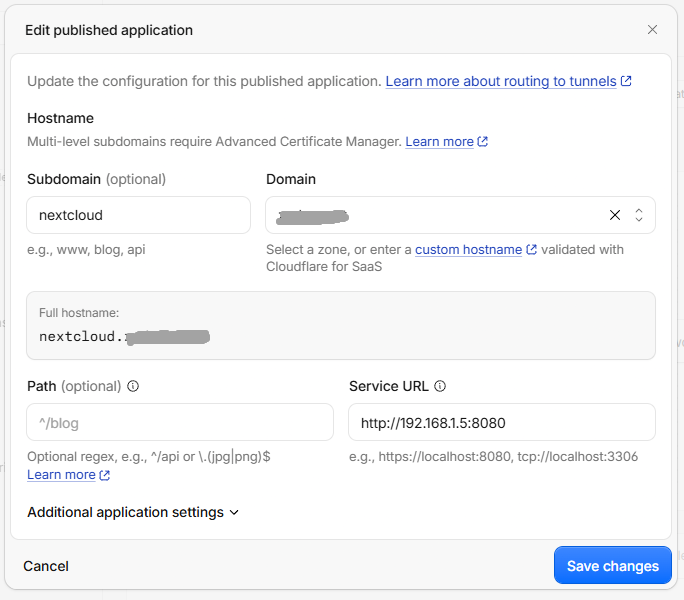
Do not put Cloudflare Access in front of these two. Access shows a login page before the request reaches your server. That is fine for an admin panel, but here it breaks things in ways that look unrelated: the Euro-Office editor shows "Document server cannot be reached", because the browser's requests to the office host get the Access login page instead of the editor, and the Nextcloud desktop and phone apps cannot log in at all. Nextcloud protects itself with its own login, two-factor and brute-force protection; Step 11 adds a rule for the one part of Euro-Office that should not be public.
Active Directory domain with the same name? If your AD domain has the same name as your public domain, PCs in the house ask the domain controller for
cloud.example.comand get no answer. Delegate each public hostname from the AD DNS zone to Cloudflare's nameservers, as described in the guide Publish a public website on the same domain your Active Directory owns.
Step 10: First login and Euro-Office
Read the admin password once (admin1@nextcloud):
grep NC_ADMIN_PASSWORD /srv/nextcloud/.envOpen https://cloud.example.com and log in as admin with that password. Change it right away under avatar → Personal settings → Security.
Then, back in the shell, a short helper so the next commands stay readable:
cd /srv/nextcloud
occ() { docker compose exec -u www-data app php occ "$@"; }
occ app:install eurooffice
Euro-Office calls back to Nextcloud by its container name app, so app has to be a trusted domain. Add it at the end of the list, never at a fixed number:
occ config:system:get trusted_domainslocalhost
cloud.example.com
192.168.1.50The list starts counting at 0, so three entries means the next free number is 3:
occ config:system:set trusted_domains 3 --value=app
occ config:system:get trusted_domains
The mistake to avoid.
trusted_domains 2 --value=appdoes not insert — it overwrites entry 2. In this build that replaced192.168.1.50, and the Uptime Kuma check against the IP went red with "Access through untrusted domain" (HTTP 400), while the website itself looked fine. Always read the list first.
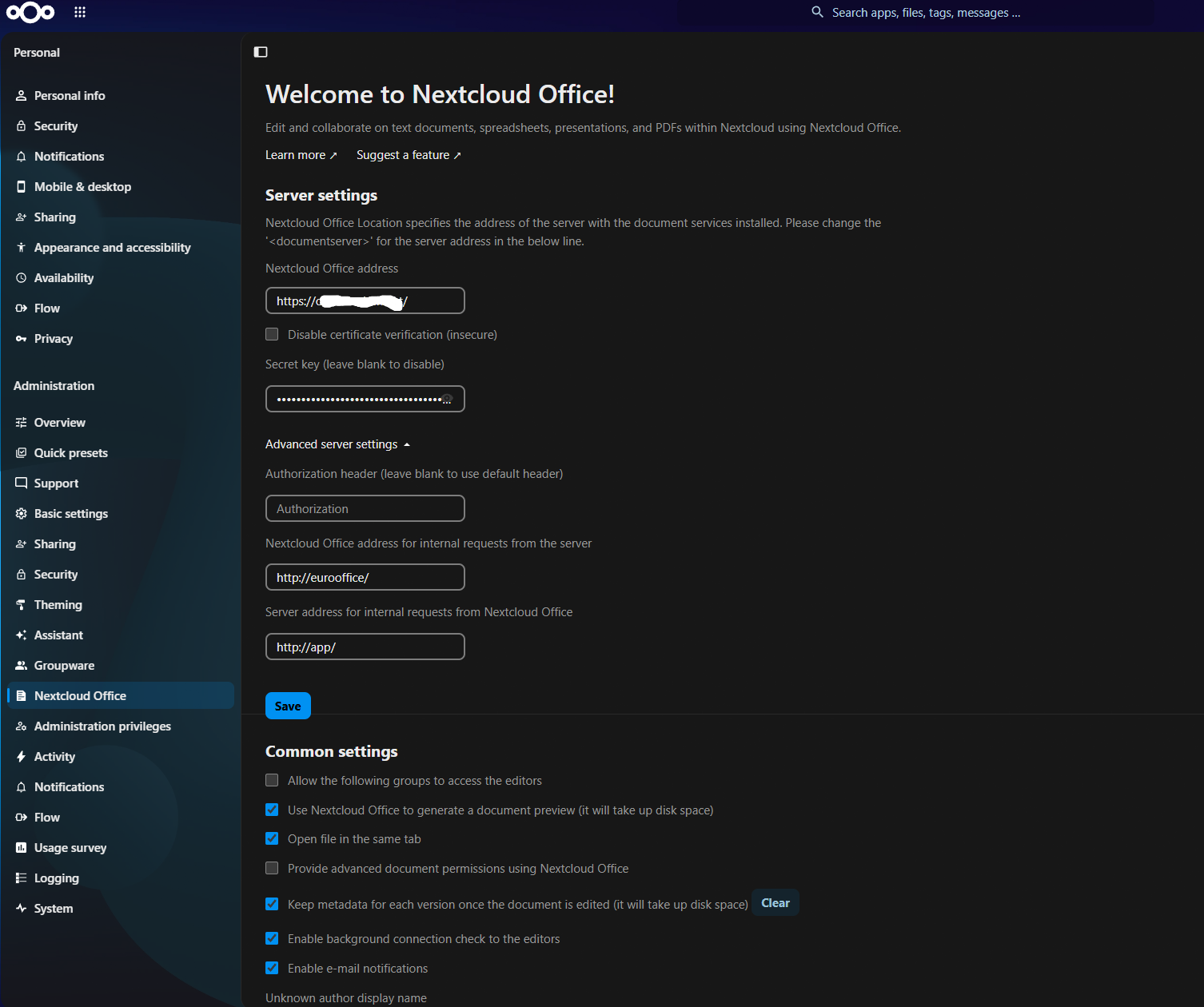
Now connect the two in the web UI: avatar → Administration settings → Euro-Office (left menu, under Administration):
| Field | Value |
|---|---|
| Euro-Office Docs address | https://office.example.com/ |
| Secret key | the value of EO_JWT_SECRET (grep EO_JWT_SECRET /srv/nextcloud/.env) |
| Advanced → Euro-Office Docs address for internal requests from the server | http://eurooffice/ |
| Advanced → Server address for internal requests from Euro-Office Docs | http://app/ |
The labels can differ slightly between connector versions; the four values are what matters. Click Save. The two internal addresses keep the traffic between Nextcloud and Euro-Office inside the VM, instead of going out through Cloudflare and back.
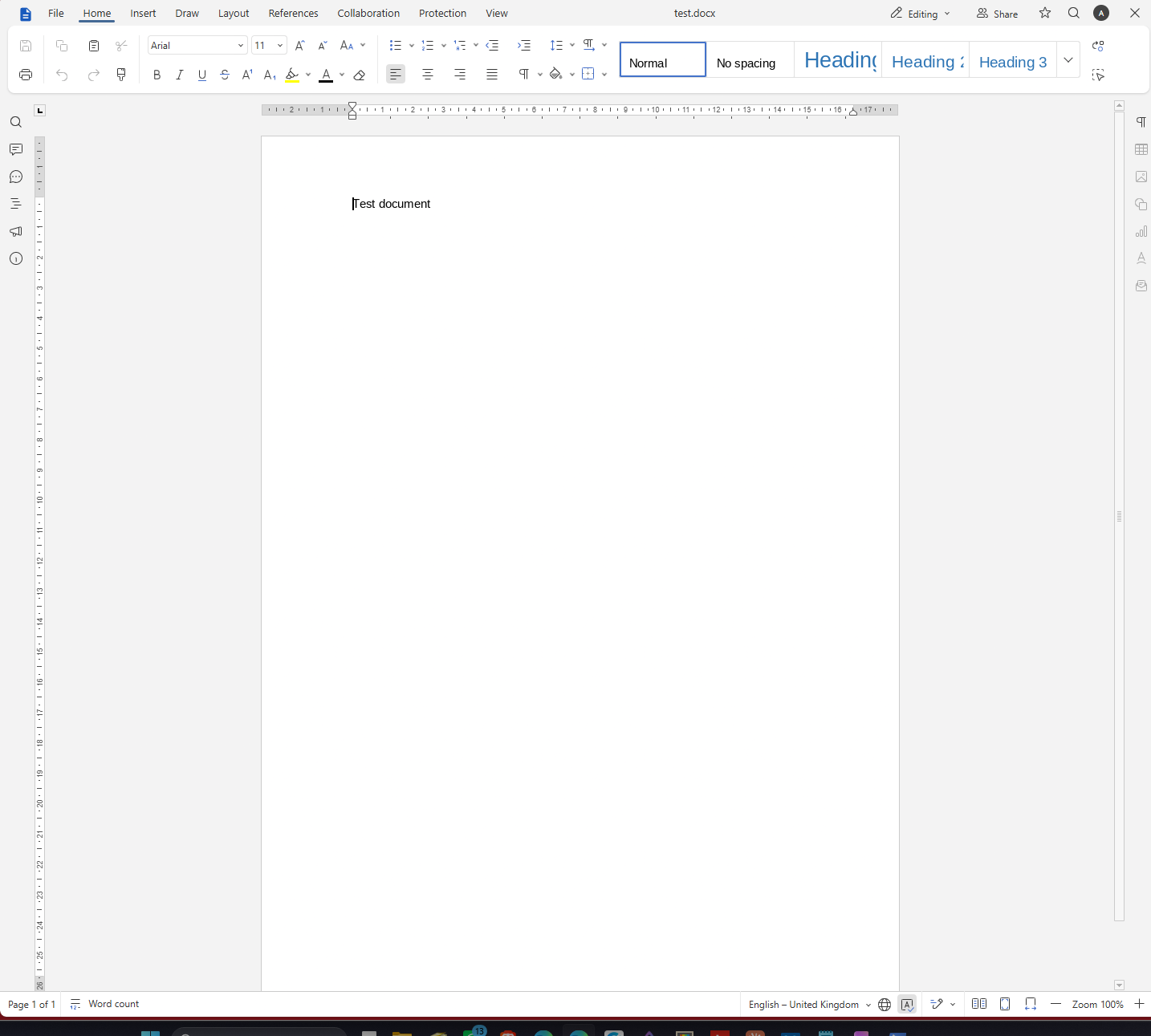
Test it: Files → + New → New document. The editor should open inside Nextcloud.
Step 11: Housekeeping and security
The settings Nextcloud's own check (Administration settings → Overview) asks for:
cd /srv/nextcloud
occ() { docker compose exec -u www-data app php occ "$@"; }
occ background:cron
occ config:system:set default_phone_region --value=DE
occ config:system:set maintenance_window_start --type=integer --value=1
occ config:system:set serverid --type=integer --value=1
occ db:add-missing-indices
occ maintenance:repair --include-expensive
occ app:disable app_apibackground:cron: uses the cron container instead of running jobs during page loads.maintenance_window_start 1: heavy background jobs run from 01:00 UTC.app_apiis for external app containers; without a deploy daemon it only produces a warning.
HSTS, for this host only. The hsts.conf from Step 7 sends the header from Nextcloud itself. Do not switch on HSTS for the whole domain in Cloudflare (SSL/TLS → Edge Certificates) if your Active Directory domain has the same name: with include subdomains, browsers would then refuse plain HTTP to every internal name under it, which breaks printers, NAS pages and anything else without a certificate. If you prefer Cloudflare over hsts.conf, use a Response Header Transform Rule limited to cloud.example.com.
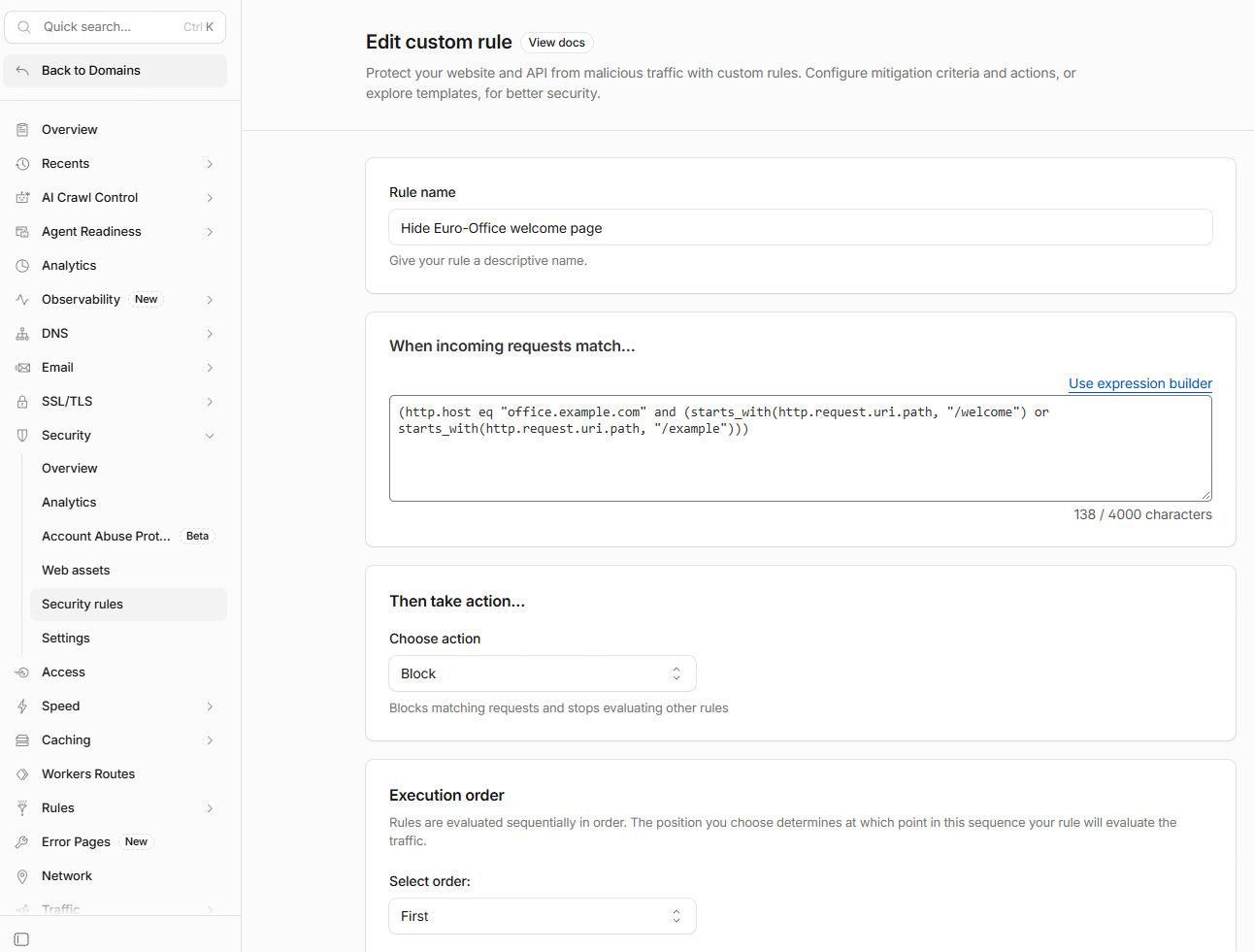
Block Euro-Office's demo pages. The document server ships a welcome page and an example editor at /welcome and /example, open to anyone who finds the address. In Cloudflare: Account home → your domain → Security → Security rules → Create rule → Custom rules, then Edit expression:
(http.host eq "office.example.com" and (starts_with(http.request.uri.path, "/welcome") or starts_with(http.request.uri.path, "/example")))Action Block, then Deploy. Custom rules are included in the free plan. Opening https://office.example.com/welcome should now show Cloudflare's block page, and documents still open in Nextcloud.
Two-factor login.
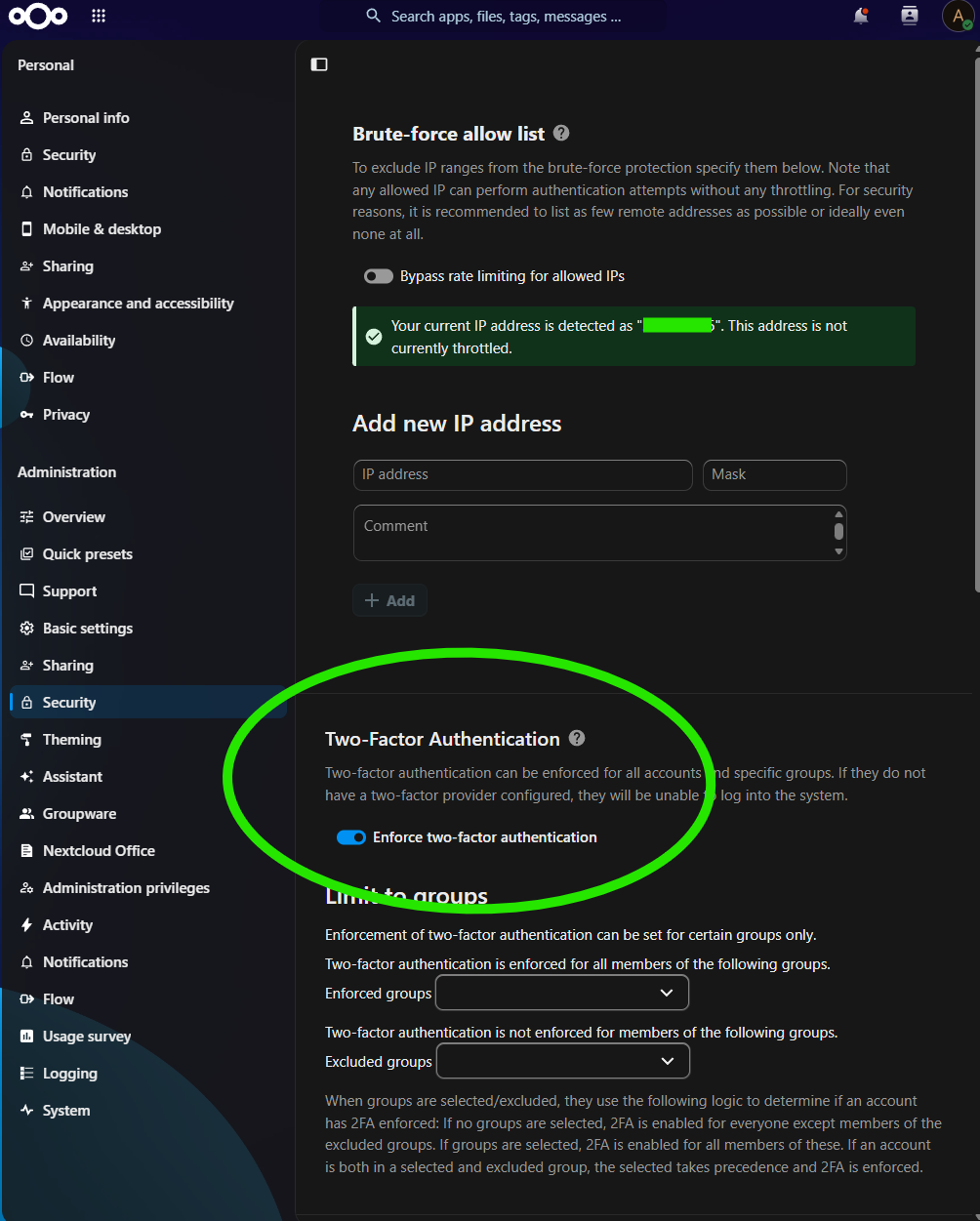
occ app:install twofactor_totpThen in Administration settings → Security → Two-Factor Authentication: tick Enforce two-factor authentication, leave Enforced for groups and Not enforced for groups both empty (= everyone), and Save. Each user is asked to set up an authenticator app at the next login.
Check what was saved:
occ config:list system | grep -A3 twofactor "twofactor_enforced": "true",
"twofactor_enforced_groups": [],
"twofactor_enforced_excluded_groups": [],Watch the two group fields. As soon as Enforced for groups contains a group, 2FA is enforced only for that group. This build had
adminin both fields for a week: the admin account was protected (the enforced list wins over the excluded one), but every other account could log in with just a password. Empty fields are what "everyone" looks like.
A personal account. Use admin only for administration. Create your own user under avatar → Accounts → New account, without the admin group, and use that one in the apps.
Step 12: Backups, monitoring, updates
Backups. The VM is a normal Proxmox guest, so a backup job that covers it saves everything, the data disk included. Check that it is in the job (root@proxmox):
grep -B1 -A8 '^vzdump' /etc/pve/jobs.cfgvzdump: backup-xxxxxxxx-xxxx
all 1
enabled 1
mode snapshot
prune-backups keep-daily=7,keep-last=3,keep-monthly=6,keep-weekly=4
schedule 11:00all 1 includes every guest; otherwise 120 must appear in a vmid line. The first backup of a big data disk takes a while; after that Proxmox Backup Server only sends changed blocks.
Monitoring. In Uptime Kuma, add an HTTP(s) - Keyword monitor for http://192.168.1.50:8080/status.php with keyword "installed":true, and one for https://cloud.example.com/status.php from outside. The internal one only works while 192.168.1.50 is in trusted_domains — see the box in Step 10.
Updates (admin1@nextcloud), during the day:
cd /srv/nextcloud
docker compose pull
docker compose up -d
docker compose ps
nextcloud:stable-apache moves to a new major version only after it has matured, and Nextcloud upgrades itself on the first start. It can only go one major version at a time, so do not leave updates for a year. Check Administration settings → Overview afterwards.
When it goes wrong
| What you see | Cause | Fix |
|---|---|---|
Permission denied (publickey) on SSH |
Key added after first boot, or the wrong file | qm set 120 --sshkeys /root/admin1.pub, then qm stop and qm start |
REMOTE HOST IDENTIFICATION HAS CHANGED |
IP reused, or new host keys | ssh-keygen -R 192.168.1.50 on the PC |
eurooffice keeps restarting |
A folder mounted over its config or logs | Named volumes as in Step 7 |
| Document server cannot be reached | Cloudflare Access in front of office.example.com, or wrong internal addresses |
Remove the Access app; check the four fields in Step 10 |
| HTTP 400 Access through untrusted domain | Address missing from trusted_domains |
occ config:system:get trusted_domains, then add it at the next free number |
| Everyone shares one IP in the security log | TRUSTED_PROXIES missing |
Set it to your LAN, docker compose up -d |
| Overview warns about HSTS | hsts.conf not mounted |
Check the volume lines in Step 7, docker compose up -d app |
Did this guide work for you?
Thank you! That helps me keep this guide right.