A second AdGuard Home that keeps DNS working when the first one dies
Run a second AdGuard Home that stays in sync, so DNS keeps working when the first one fails.
Before you start
- An AdGuard Home that is already running and set up. This guide copies it. It does not replace it.
- A second physical machine with Proxmox. Two containers on one host fail at the same time, so that would not help.
- A free IP address for the new container, and access to change the DNS servers your router gives to devices.
- Fill in Your values below and every command and address on this page updates to match.
Your values
Fill these in and every command below updates to match. Nothing is sent anywhere.
Run this at your own risk. These steps worked on my hardware; yours may differ. Take a backup first, read each command before running it, and see the disclaimer.
When your DNS server goes down, nothing works, and it does not look like a DNS problem. Websites do not load, phones say "no internet", the TV app keeps loading, but the router is fine. One container that is down takes the whole house offline.
If your AdGuard Home runs on the same machine as everything else, the whole network depends on that one machine. A second AdGuard on a different machine fixes this. The best part: it stays in sync by itself. You change filters and rules in one place, and the copy follows within ten minutes.
What you end up with
| AdGuard #1 | 192.168.1.6 — the one you set up and change |
| AdGuard #2 | 192.168.1.30 — on a different physical machine, synced automatically |
| Clients | Get both addresses, so they switch to the other one by themselves |
Change these to your own addresses in Your values.
Step 1: Create the container
Do this on the second Proxmox node. It must be a different machine, that is the whole point. Paste into its Shell:
pveam update
TPL=$(pveam available --section system | awk '/debian-13-standard.*_amd64/ {print $2}' | sort -V | tail -1)
echo "Downloading: $TPL"
pveam download local "$TPL"
Check that the name ends in
_amd64.tar.zst. Proxmox also offers ARM templates, which look almost the same. The container is created without errors, but then it will not start and shows "Exec format error". Theawkfilter above only picks amd64.
TPL=$(ls /var/lib/vz/template/cache/ | grep 'debian-13-standard.*_amd64' | sort -V | tail -1)

pct create 130 local:vztmpl/$TPL \
  --hostname adguard2 \
  --cores 1 --memory 512 --swap 256 \
  --rootfs local-lvm:4 \
  --net0 name=eth0,bridge=vmbr0,ip=192.168.1.30/24,gw=192.168.1.1 \
  --nameserver 192.168.1.1 \
  --unprivileged 1 --features nesting=1 \
  --onboot 1

pct start 130
pct exec 130 -- passwd
512 MB and one CPU core are really enough. This container does very little work.
Step 2: Install AdGuard Home
pct exec 130 -- bash -c "apt update && apt full-upgrade -y && apt install -y curl"
pct exec 130 -- bash -c "curl -s -S -L https://raw.githubusercontent.com/AdguardTeam/AdGuardHome/master/scripts/install.sh | sh -s -- -v"
Then open http://192.168.1.30:3000 and go through the setup:
| Field | Value |
|---|---|
| Admin web interface port | 80 |
| DNS port | 53 |
| Username / password | The same as AdGuard #1 |
Do not add filter lists and do not change settings. The sync copies everything from the first one, and it will overwrite anything you set here by hand.
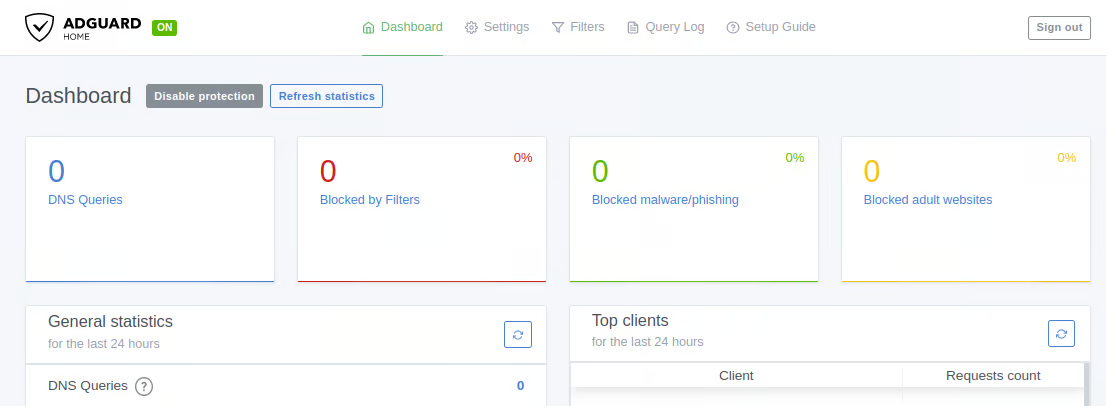
Step 3: Make it copy itself
The sync tool runs inside the second container. Enter it:
pct enter 130Check that the prompt says
root@adguard2before you paste anything else. If you paste this on the Proxmox host by mistake, the service installs on the wrong machine. There it runs without errors but does nothing useful.
Download the tool. The release page also has a .sbom.json file. The closing quote in the grep is important: it picks the archive, not that file:
URL=$(curl -s https://api.github.com/repos/bakito/adguardhome-sync/releases/latest | grep browser_download_url | grep 'linux_amd64.tar.gz"' | cut -d '"' -f4)
curl -sL "$URL" | tar -xz -C /usr/local/bin adguardhome-sync
chmod +x /usr/local/bin/adguardhome-sync
Write the configuration. It asks you for both passwords, so they do not end up in your shell history:
read -rp  "AdGuard #1 username: " U1; read -rsp "AdGuard #1 password: " P1; echo
read -rp  "AdGuard #2 username: " U2; read -rsp "AdGuard #2 password: " P2; echo

mkdir -p /etc/adguardhome-sync
cat > /etc/adguardhome-sync/config.yaml <<EOF
cron: "*/10 * * * *"
runOnStart: true
origin:
  url: http://192.168.1.6:80
  username: '$U1'
  password: '$P1'
replicas:
  - url: http://192.168.1.30:80
    username: '$U2'
    password: '$P2'
api:
  port: 8080
features:
  dhcp:
    serverConfig: false
    staticLeases: false
EOF
chmod 600 /etc/adguardhome-sync/config.yaml
unset P1 P2
DHCP sync is off on purpose. Two servers that both give out IP addresses in one network cause much bigger problems than the one you are fixing here.
Run it as a service:
cat > /etc/systemd/system/adguardhome-sync.service <<'EOF'
[Unit]
Description=AdGuard Home Sync
After=network-online.target AdGuardHome.service
Wants=network-online.target

[Service]
ExecStart=/usr/local/bin/adguardhome-sync run --config /etc/adguardhome-sync/config.yaml
Restart=on-failure

[Install]
WantedBy=multi-user.target
EOF
systemctl daemon-reload
systemctl enable --now adguardhome-sync
journalctl -u adguardhome-sync -n 20 --no-pagerINFO sync donesync done means it worked. Reload AdGuard #2, and the filter lists from #1 are there.
Step 4: Hand clients both servers
A second server helps only if your devices know about it.
On the router (DHCP settings): enter both addresses as the DNS servers for clients.
If you run a Windows domain, the domain controller forwards DNS requests to them instead:
Set-DnsServerForwarder -ComputerName dc.example.local -IPAddress 192.168.1.6,192.168.1.30If you have an internal domain, add the forwarding rules only on AdGuard #1. The sync copies them to #2. Settings → DNS settings → Upstream DNS servers:
[/example.local/]192.168.1.20
[/1.168.192.in-addr.arpa/]192.168.1.20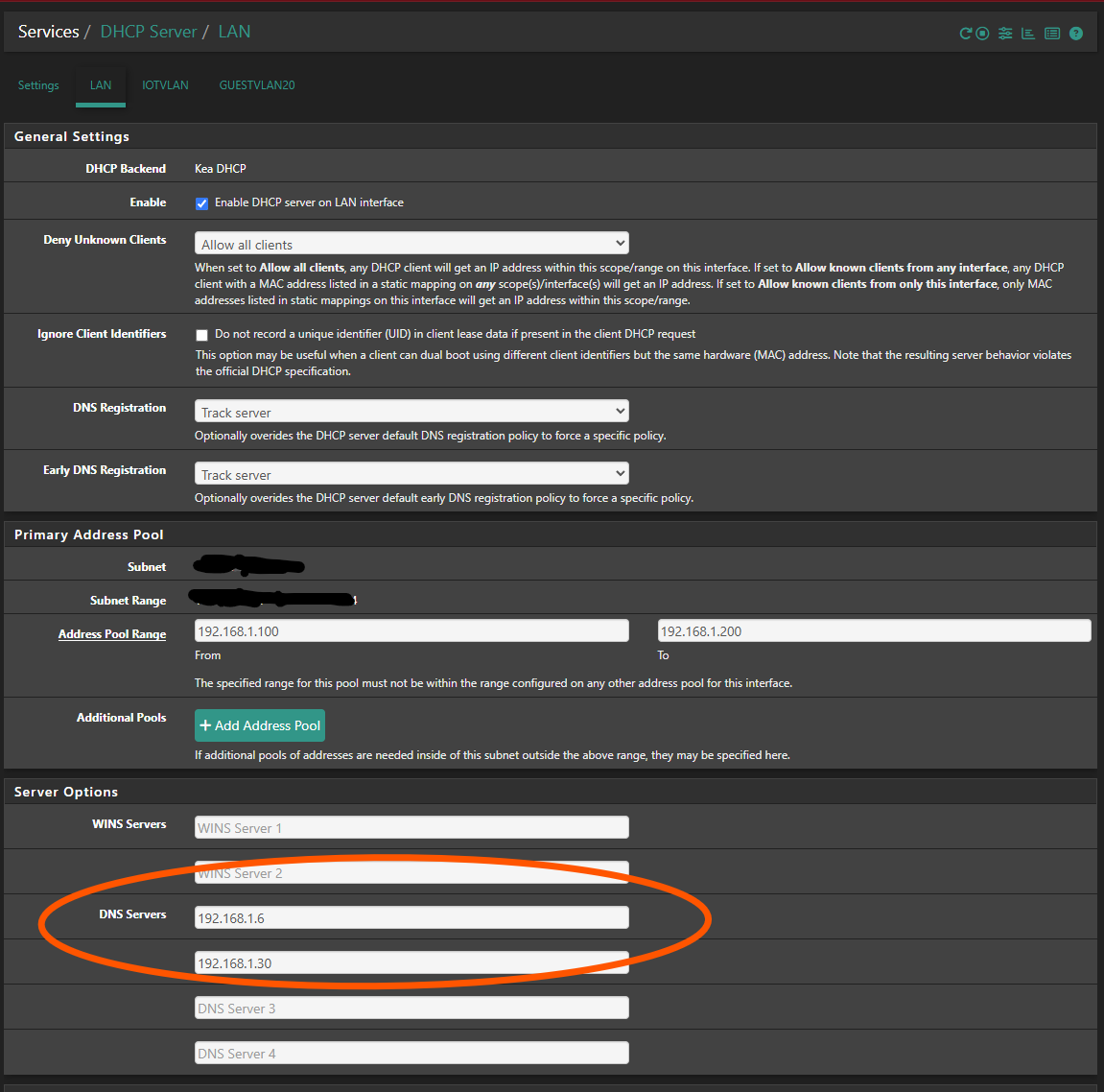
Step 5: Prove the failover works
A failover you have not tested may not work. Stop the first one:
pct stop 106Now, from any machine, ask for a name that AdGuard blocks:
nslookup doubleclick.netName: doubleclick.net
Address: 0.0.0.0If you get 0.0.0.0 while #1 is stopped, #2 answered and is still filtering. Start the first one again:
pct start 106If the test times out, check what else handles DNS on the machine you test from. A VPN client such as Twingate, Tailscale with MagicDNS, or a company security agent catches DNS requests before they reach your network. Then the result means nothing. Close it and test again.
What this does and does not protect you from
It covers the most common case: one machine is down for an update, a reboot, or a failed container. Both servers have the same filters, so nobody notices.
It does not help when your internet is down. It also does not help if both containers run on the same physical host, so avoid that mistake. Use a different machine with a different power supply. Otherwise both fail at the same time.
Did this guide work for you?
Thank you! That helps me keep this guide right.