Update Immich on TrueNAS safely: release notes, snapshots, one script
A safe way to update Immich on TrueNAS: read the release notes, take snapshots, and update with one script.
Before you start
- Immich running as a Docker Compose project on TrueNAS SCALE, with the version set as
IMMICH_VERSIONin.env(as in Immich on TrueNAS with GPU and migration). - The app folder, the database and the photo library on ZFS datasets.
- Shell access to TrueNAS with
sudo. - Fill in Your values below and every command on this page updates to match.
Your values
Fill these in and every command below updates to match. Nothing is sent anywhere.
Run this at your own risk. These steps worked on my hardware; yours may differ. Take a backup first, read each command before running it, and see the disclaimer.
Immich releases a new version every few weeks. Updating is quick, but Immich also holds the family photos, so an update should never be a risk. This guide gives you one routine to repeat every time: read the release notes, check what the compose files really run, take ZFS snapshots, then update with one script. The script also prints the command to go back.
It uses the setup from the guide Immich on TrueNAS with GPU and migration. Immich runs as a normal Docker Compose project on TrueNAS SCALE (not a TrueNAS catalog app). The version is fixed in .env, and the database and the photo library are on their own datasets.
Using the catalog app instead? If you installed Immich from Apps → Discover Apps in TrueNAS, this guide is not for you. Use Apps → Installed → immich → Update. Step 2 shows which one you have: a Compose project has container names like
immich_server, a catalog app has names that start withix-.
How the version is controlled
In the official compose file, the server and machine-learning images get their version from .env:
image: ghcr.io/immich-app/immich-server:${IMMICH_VERSION:-release}
image: ghcr.io/immich-app/immich-machine-learning:${IMMICH_VERSION:-release}-openvino
So an update is one line in .env, then docker compose pull and up -d. The database and Redis/Valkey images are fixed with a @sha256: hash. They only change when the release notes say so.
Always set a real version (IMMICH_VERSION=v3.2.2), never release. With release, any restart can download a new major version without you knowing.
Step 1: Read the release notes first
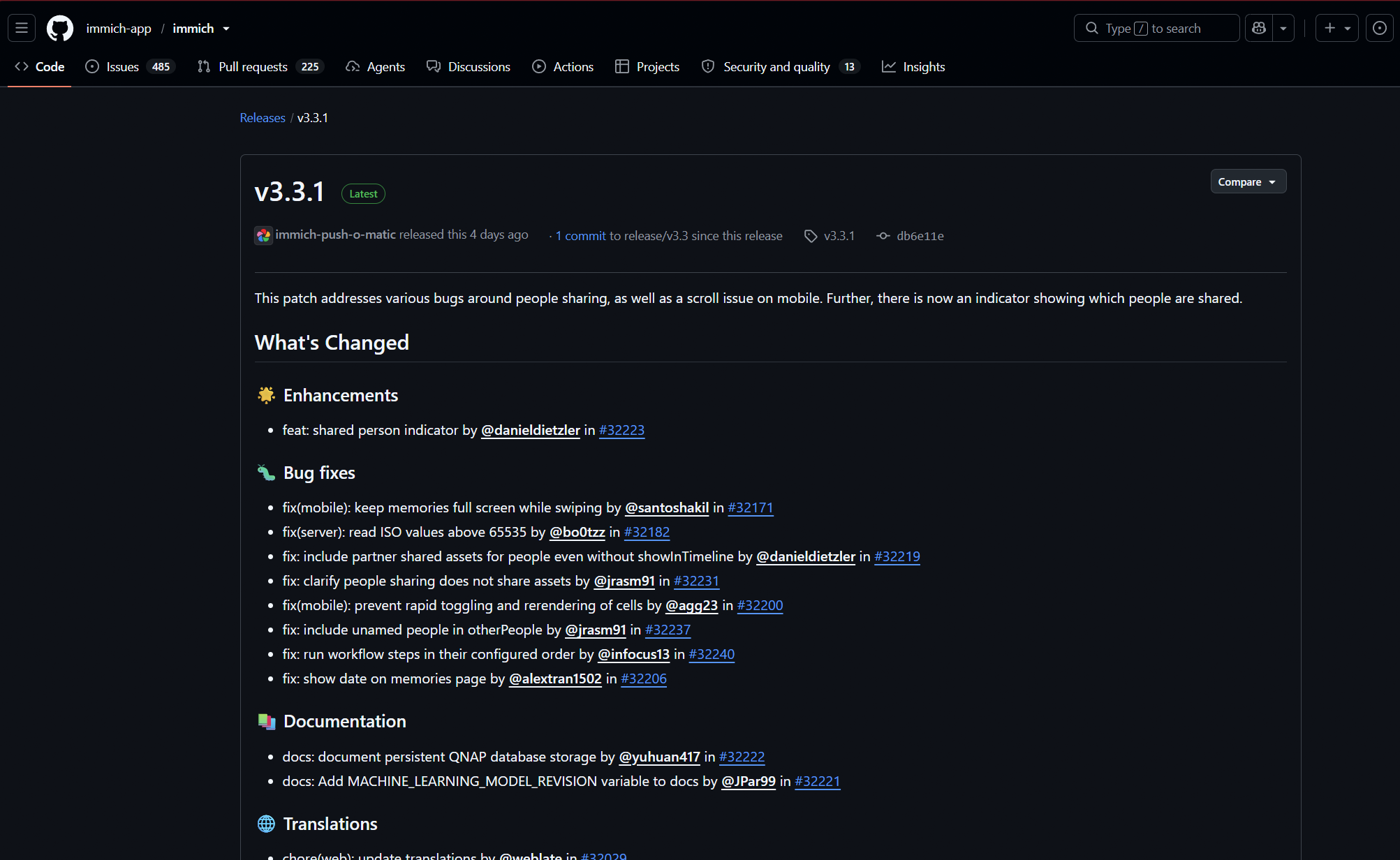
Open the release page for the new version on GitHub:
https://github.com/immich-app/immich/releases/tag/v3.3.1If you skip versions, read every release in between, not only the newest. Look for three things:
- a Breaking changes section, or text like "manual action required";
- changes to docker-compose.yml, .env or the database image (postgres / vectorchord);
- changes to hwaccel.ml.yml if you use OpenVINO, CUDA or another accelerator.
Also look at the Discussions tab for the release. If an update breaks something, people report it there within a day. If you are not sure, wait a few days. Patch releases (x.y.1) usually come quickly.
Step 2: See what is running and where
These commands only read, they change nothing. In the TrueNAS shell (System → Shell, or SSH):
cd /mnt/nvme/apps/immich
ls -la
sudo grep -n '^IMMICH_VERSION' .env
sudo docker compose config --images
sudo docker ps --format '{{.Names}} {{.Image}}' | grep immichIMMICH_VERSION=v3.2.2
ghcr.io/immich-app/immich-server:v3.2.2
ghcr.io/immich-app/immich-machine-learning:v3.2.2-openvino
docker.io/valkey/valkey:9@sha256:...
ghcr.io/immich-app/postgres:14-vectorchord0.4.3-pgvectors0.2.0@sha256:...What to check:
IMMICH_VERSIONis the version you have now.docker compose config --imagesshows what Compose really starts, after it combinesdocker-compose.yaml,docker-compose.override.yamland.env. If the server line shows a fixed version that does not come from.env, an override file sets its ownimage:. Then the update script below would not change it.
Never paste
.envor the output of a plaindocker compose configanywhere. Both contain the database password. The commands above print only the version and the image names, which is why they are safe.
To read a file without changing it by mistake, use sudo less docker-compose.yaml (q to quit) or sudo nano -v (read-only, Ctrl + X to quit). nano cannot open a folder. Use cd to go into it first.
Step 3: Compare with the official compose file (only if the notes mention it)
When the release notes say the compose file changed, compare the pinned images with the official file for the new version:
https://raw.githubusercontent.com/immich-app/immich/v3.3.1/docker/docker-compose.ymlCopy only what changed, usually one @sha256: hash on the Valkey or Postgres line. Keep your own lines: extra mounts like an external library, your model-cache path, your hwaccel extends. Make a backup of the file first:
sudo cp docker-compose.yaml docker-compose.yaml.bak-v3.2.2Be most careful with a Postgres image change. Do exactly what the release notes say, and only after the snapshots from Step 5 exist.
Step 4: Create the update script (one time)
The script does the same steps every time: snapshots, .env change, pull, start, status. It also prints the command to go back for this exact update. Paste the whole block, from sudo tee to the last EOF:
sudo tee /mnt/nvme/apps/immich-update.sh >/dev/null <<'EOF'
#!/bin/bash
# Usage: sudo bash /mnt/nvme/apps/immich-update.sh v1.2.3
set -euo pipefail
NEW="${1:?Usage: sudo bash $0 v1.2.3}"
DIR=/mnt/nvme/apps/immich
TAG="pre-${NEW}"

cd "$DIR"
OLD=$(grep '^IMMICH_VERSION=' .env | cut -d= -f2)
echo ">> Current: $OLD   New: $NEW"
[ "$OLD" = "$NEW" ] && { echo ">> Already on $NEW, nothing to do."; exit 0; }

snap() { zfs list -t snapshot "$2@$TAG" >/dev/null 2>&1 && echo ">> Snapshot $2@$TAG exists" || { zfs snapshot $1 "$2@$TAG"; echo ">> Snapshot $2@$TAG created"; }; }
snap -r nvme/apps/immich
snap ""  nvme/databases/immich
snap ""  tank/immich

cp .env ".env.bak-$OLD"
sed -i "s/^IMMICH_VERSION=.*/IMMICH_VERSION=$NEW/" .env
echo ">> .env now: $(grep '^IMMICH_VERSION=' .env)"

docker compose pull
docker compose up -d
echo ">> Waiting 30 s for startup..."
sleep 30
docker ps --format '{{.Names}}  {{.Image}}  {{.Status}}' | grep immich
echo
echo ">> Rollback if needed:"
echo "   cd $DIR && sed -i 's/^IMMICH_VERSION=.*/IMMICH_VERSION=$OLD/' .env && docker compose down"
echo "   zfs rollback nvme/databases/immich@$TAG && docker compose up -d"
echo ">> After a few good days: zfs destroy -r nvme/apps/immich@$TAG; zfs destroy nvme/databases/immich@$TAG; zfs destroy tank/immich@$TAG"
EOF
sudo chmod 700 /mnt/nvme/apps/immich-update.sh
ls -l /mnt/nvme/apps/immich-update.sh-rwx------ 1 root root 1622 ... immich-update.shWhy each part is there:
- Three snapshots. The app folder, the database and the photo library are separate datasets. A snapshot of one does not include the others. The database snapshot is the most important one: a new Immich version changes the database on the first start, and you cannot go back to the old version without the old database. The library snapshot costs nothing and is extra safety.
- Snapshots that already exist are skipped, so you can take them by hand first and still run the script.
.env.bak-<old version>keeps the old file. It contains the database password, so it stays in the same folder that only root can read.chmod 700: only root can read or run it.
Step 5: Run the update
Run it during the day, when nobody is uploading from a phone:
sudo bash /mnt/nvme/apps/immich-update.sh v3.3.1Run it with bash in front. If you start it directly, it can fail on TrueNAS with command not found. You also see this message when the file was never created. ls -l /mnt/nvme/apps/immich-update.sh tells you which one it is.
>> Current: v3.2.2   New: v3.3.1
>> Snapshot nvme/apps/immich@pre-v3.3.1 created
>> Snapshot nvme/databases/immich@pre-v3.3.1 created
>> Snapshot tank/immich@pre-v3.3.1 created
>> .env now: IMMICH_VERSION=v3.3.1
...
immich_server  ghcr.io/immich-app/immich-server:v3.3.1  Up 30 seconds (health: starting)
immich_redis  valkey/valkey:9  Up 30 seconds (healthy)
immich_machine_learning  ghcr.io/immich-app/immich-machine-learning:v3.3.1-openvino  Up 30 seconds (health: starting)
immich_postgres  ghcr.io/immich-app/postgres:14-vectorchord0.4.3-pgvectors0.2.0  Up 5 weeks (healthy)
health: starting is normal for the first minute or two. Postgres keeps running if its image did not change. That is correct.
Step 6: Check it
After two minutes:
sudo docker ps --format '{{.Names}}  {{.Status}}' | grep immich
sudo docker logs --tail 15 immich_serverimmich_server Up About a minute (healthy)
immich_redis Up About a minute (healthy)
immich_machine_learning Up About a minute (healthy)
immich_postgres Up 5 weeks (healthy)
...
LOG [Microservices:Bootstrap] Immich Microservices is running [v3.3.1] [production]
LOG [Api:WebsocketRepository] Websocket Connect: ...You want all four healthy, the new version in the Microservices is running line, and no ERROR lines. Websocket Connect means a browser or phone has already connected again.
Then in the browser:
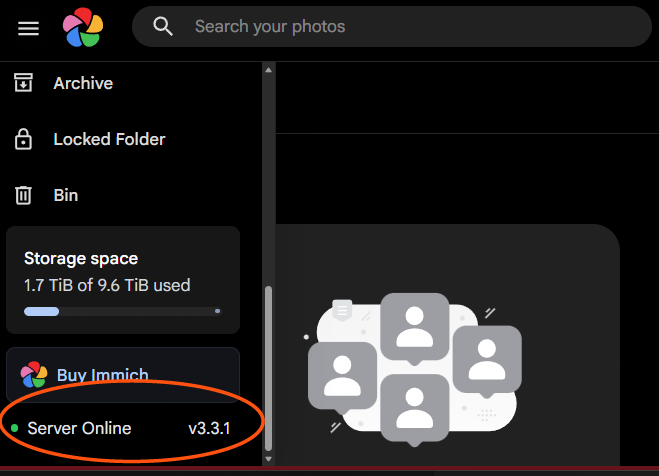
- The version bottom left in the Immich web UI shows the new version.
- Open a few photos, play a video, and run a search. The first search after an update can take a few seconds while the ML models load.
- Update the Immich app on every phone to the latest version, so app and server match.
Step 7: Clean up after a few days
When everything has worked for a few days, delete the snapshots. The script printed the exact command at the end. For this example:
sudo zfs destroy -r nvme/apps/immich@pre-v3.3.1
sudo zfs destroy nvme/databases/immich@pre-v3.3.1
sudo zfs destroy tank/immich@pre-v3.3.1
sudo docker image prune -f
docker image prune deletes the old Immich images that are no longer used, usually a few GB.
When it goes wrong: rollback
If Immich does not start healthy, or something important is broken, go back. Do it in this order: stop Immich, restore the database, then start the old version:
cd /mnt/nvme/apps/immich
sudo sed -i 's/^IMMICH_VERSION=.*/IMMICH_VERSION=v3.2.2/' .env
sudo docker compose down
sudo zfs rollback nvme/databases/immich@pre-v3.3.1
sudo docker compose up -d
Immich loses photos that were uploaded after the update, because the old database does not know them. The phone apps upload them again at their next backup, because the server no longer has them. That is why Step 5 says to update when nobody is uploading.
Every update, in short
- Read the release notes from your version up to the new one.
sudo docker compose config --images: confirm the version comes from.env.- If the notes changed the compose file, copy the changed hashes.
sudo bash /mnt/nvme/apps/immich-update.sh vX.Y.Z.- All four containers healthy, version in the web UI, phones updated.
- A few days later: destroy the snapshots, prune old images.
Did this guide work for you?
Thank you! That helps me keep this guide right.