A second domain controller on Proxmox with the free Windows Server 2025 evaluation
Add a second domain controller on Proxmox, set up DNS on both, and check that Active Directory copies between them.
Before you start
- An existing Active Directory domain with one healthy domain controller.
- A Proxmox VE host, if possible a different one than DC1's, with 2 cores, 4 GB RAM and 64 GB disk free.
- A domain admin account.
- Fill in Your values below and every command on this page updates to match.
Your values
Fill these in and every command below updates to match. Nothing is sent anywhere.
Run this at your own risk. These steps worked on my hardware; yours may differ. Take a backup first, read each command before running it, and see the disclaimer.
With only one domain controller, every reboot for Windows updates is a small outage. Sign-ins are slow, group policy fails, and anything that asks the domain's DNS gets no answer. A second domain controller keeps a full copy of Active Directory and DNS, so one of them can be off and nobody notices. On a second Proxmox host, it also keeps working when the first host fails.
This guide builds the second DC on Proxmox with the free 180-day evaluation of Windows Server 2025. You promote it with PowerShell, set up DNS the way Microsoft recommends, and check that both DCs really copy data to each other.
What you end up with:
| DC1 (existing) | DC2 (new) | |
|---|---|---|
| Active Directory | Full copy, global catalog | Full copy, global catalog |
| DNS | Answers for the domain | Answers for the domain |
| FSMO roles | All five, unchanged | None (doesn't need them) |
| SYSVOL (GPOs, scripts) | Replicated with DFSR | Replicated with DFSR |
About the evaluation. It is the full Windows Server 2025 Standard/Datacenter. It works for 180 days, and you can extend it with
slmgr /rearm(Step 9). One limit: an evaluation that is already a domain controller cannot be converted to a licensed version. If you buy a licence later, you build a new DC on a licensed install and remove this one. With this guide that takes about 30 minutes, so it is fine for a homelab. Just know it before you start.
Before you start
On DC1, in PowerShell as administrator, check that the domain is healthy. When you promote a second DC, existing problems are copied together with the data.
dcdiag /q
repadmin /showrepl
dcdiag /q prints only errors, so ideally it prints nothing. With only one DC, repadmin /showrepl has no partners to show yet. That is fine.
Download two ISOs and upload them in Proxmox (your ISO storage → ISO Images → Upload) on the host that will run DC2. Enter that storage's name under Your values:
- Windows Server 2025 evaluation, ISO, from the Microsoft Evaluation Center.
- virtio-win (stable), the Proxmox/Fedora VirtIO driver ISO. Use a recent one: it must contain a
2k25folder.
Step 1: Create the VM
Run this in the Proxmox host shell of the host that will run DC2. The ISO file names under Your values must match the files you uploaded.
qm create 201 --name dc2 --ostype win11 --machine q35 --bios ovmf \
  --efidisk0 local-lvm:1,efitype=4m,pre-enrolled-keys=1 --tpmstate0 local-lvm:1,version=v2.0 \
  --cpu host --cores 2 --memory 4096 --balloon 0 --agent 1 \
  --scsihw virtio-scsi-single --scsi0 local-lvm:64,iothread=1,discard=on \
  --net0 virtio,bridge=vmbr0,firewall=1 \
  --ide2 local:iso/windows-server-2025-eval.iso,media=cdrom --ide0 local:iso/virtio-win.iso,media=cdrom \
  --boot 'order=ide2;scsi0'
qm start 201| Setting | Why |
|---|---|
--ostype win11 |
Proxmox's setting for Windows 11 and Server 2022/2025: correct timers and Hyper-V hints |
| 2 cores, 4 GB, 64 GB | Enough for a DC in a homelab. A DC is idle most of the time. |
--balloon 0 |
Fixed memory. Ballooning on a DC only saves a little and can slow it down. |
| VirtIO disk and network | Much faster than emulated hardware. Windows needs the driver from the second CD for the disk. |
Open the VM's Console in Proxmox right away and press a key when it says Press any key to boot from CD or DVD. If you miss it, use Reset and try again.
Step 2: Install Windows Server
- Language, then I'm installing Windows Server 2025, then pick Windows Server 2025 Standard Evaluation (Desktop Experience). Without Desktop Experience you get Server Core with no desktop.
- On the disk page the list is empty, because Windows has no VirtIO driver. Click Load driver → Browse, open the virtio CD, folder
vioscsi\2k25\amd64, OK, select the Red Hat VirtIO SCSI driver, Install. The 64 GB disk appears. - Select it, click Next, and let it install. Set the local Administrator password when asked.
After the first sign-in, open the virtio CD in Explorer and run virtio-win-guest-tools.exe. It installs the network driver, the balloon and display drivers, and the QEMU guest agent in one step. Now the VM has a network connection, and Proxmox shows its IP on the Summary page.
Step 3: IP address, name, and DNS
Run this in PowerShell as administrator on the new server. The first three lines remove the temporary DHCP address, then the fixed address is set. For now, DNS points only to DC1: the new server must find the domain, and only DC1 knows it.
$if = (Get-NetAdapter | Where-Object Status -eq 'Up').Name
Set-NetIPInterface -InterfaceAlias $if -AddressFamily IPv4 -Dhcp Disabled
Get-NetIPAddress -InterfaceAlias $if -AddressFamily IPv4 -ErrorAction SilentlyContinue | Remove-NetIPAddress -Confirm:$false
Remove-NetRoute -InterfaceAlias $if -DestinationPrefix '0.0.0.0/0' -Confirm:$false -ErrorAction SilentlyContinue
New-NetIPAddress -InterfaceAlias $if -IPAddress 192.168.1.22 -PrefixLength 24 -DefaultGateway 192.168.1.1
Set-DnsClientServerAddress -InterfaceAlias $if -ServerAddresses 192.168.1.21
Set-TimeZone -Id 'W. Europe Standard Time'
Rename-Computer -NewName dc2 -Restart
After the restart, check that the domain can be reached before you continue:
Resolve-DnsName _ldap._tcp.dc._msdcs.home.example.com -Type SRV | Select-Object NameTarget, Port
Test-NetConnection 192.168.1.21 -Port 389 | Select-Object RemoteAddress, TcpTestSucceededNameTarget Port
---------- ----
dc1.home.example.com 389
RemoteAddress TcpTestSucceeded
------------- ----------------
192.168.1.21 TrueIf there is no SRV record, DNS is wrong. Fix that first, because nothing below works without it.
Step 4: Join the domain
Add-Computer -DomainName home.example.com -Credential (Get-Credential -Message "Domain admin" -UserName "HOME\Administrator") -RestartAfter the restart, sign in as a domain admin (HOME\Administrator or your own admin account), not as the local Administrator. This is important for Step 5.
Step 5: Promote it to a domain controller
Install the role, then do a test run. The test run checks everything the real promotion needs and changes nothing.
Install-WindowsFeature AD-Domain-Services -IncludeManagementTools
$dsrm = Read-Host -AsSecureString "DSRM password"
Test-ADDSDomainControllerInstallation -DomainName home.example.com -InstallDns -SafeModeAdministratorPassword $dsrm | Select-Object Status, Message
Why a DSRM password? Directory Services Restore Mode is a special start mode for repairing or restoring Active Directory. In this mode the domain is not available, so the DC needs its own local password. Use a strong one and save it in your password manager. You only need it when something has gone badly wrong.
The test run must end with Success. Warnings about delegation for this DNS server and cryptography algorithms compatible with Windows NT 4.0 are normal in every domain.
Now the real promotion. It takes 5 to 15 minutes and restarts the server by itself:
Install-ADDSDomainController -DomainName home.example.com -InstallDns -ReplicationSourceDC dc1.home.example.com -SafeModeAdministratorPassword $dsrm -ForceSign in as domain admin, and do not use
-Credential. The command uses your sign-in to talk to DC1. If you run it from a local admin session with-Credential, it can stop at Replicating the schema directory partition and end with error 1749. Signing in as a domain admin and leaving out-Credentialavoids this.
Looks frozen? If you clicked into the PowerShell window, it may be in select mode. Then the title starts with Select and the output stops. Press Esc and it continues. If it really hangs, the VM's Summary page in Proxmox shows no CPU use for many minutes.
Step 6: DNS on both DCs
Microsoft's rule for DNS on domain controllers: first the other DC, then its own IP, and loopback last. This way each DC can still find the domain while its own DNS service is starting after a reboot.
On DC2 (after the restart, signed in as domain admin):
$if = (Get-NetAdapter | Where-Object Status -eq 'Up').Name
Set-DnsClientServerAddress -InterfaceAlias $if -ServerAddresses 192.168.1.21,192.168.1.22,127.0.0.1
On DC1:
$if = (Get-NetAdapter | Where-Object Status -eq 'Up').Name
Set-DnsClientServerAddress -InterfaceAlias $if -ServerAddresses 192.168.1.22,192.168.1.21,127.0.0.1
Forwarders (where the DCs send questions about internet names) are set on each server and are not copied. Give DC2 the same as DC1. On DC1, look:
Get-DnsServerForwarder | Select-Object IPAddressOn DC2, set the same list, for example your two AdGuard servers:
Set-DnsServerForwarder -IPAddress 192.168.1.53,192.168.1.54
Get-DnsServerForwarder | Select-Object IPAddress
The zones themselves (your domain, _msdcs) are stored in Active Directory and are already copied. DNS Manager on DC2 shows them without extra work.
Step 7: Tell the rest of the network
Everything that asks the DCs directly should know both of them:
- Domain-joined PCs and servers with a fixed IP: DNS servers
192.168.1.21and192.168.1.22. - DHCP for domain-joined machines: both DCs as DNS servers (pfSense: Services → DHCP Server → your LAN → DNS servers).
- AdGuard Home with the domain forwarded to the DCs: in Settings → DNS settings → Upstream DNS servers, list both DCs on the domain line, separated by a space. AdGuard then uses the one that answers:
[/home.example.com/]192.168.1.21 192.168.1.22If you run two AdGuard servers as in this guide, the line syncs to the second one by itself.
Step 8: Check that it really works
On either DC:
repadmin /replsummary
Get-ADDomainController -Filter * | Format-Table Name, IPv4Address, IsGlobalCatalog, OperationMasterRoles -AutoSizeSource DSA largest delta fails/total %% error
dc1 08m:12s 0 / 5 0
dc2 05m:40s 0 / 5 0
Destination DSA largest delta fails/total %% error
dc1 05m:40s 0 / 5 0
dc2 08m:12s 0 / 5 0fails must be 0 in every line. largest delta shows how long ago the last replication was. Up to an hour is normal within one site.
SYSVOL (group policies and logon scripts) is copied separately, with DFSR. State 4 means Normal on both:
foreach ($dc in 'dc1','dc2') {
  Get-CimInstance -Namespace root\MicrosoftDFS -ClassName DfsrReplicatedFolderInfo -ComputerName $dc |
    Select-Object @{n='DC';e={$dc}}, ReplicatedFolderName, State
}
net share | Select-String 'SYSVOL|NETLOGON'| State | Meaning |
|---|---|
| 2 | Initial sync, wait a few minutes |
| 4 | Normal |
| 5 | In error: see the DFS Replication event log |
Last, a full health check on DC2:
dcdiag /qNo output is perfect. On a new DC, only one finding is normal: under DFSREvent, warnings from the first hours. They disappear after 24 hours.
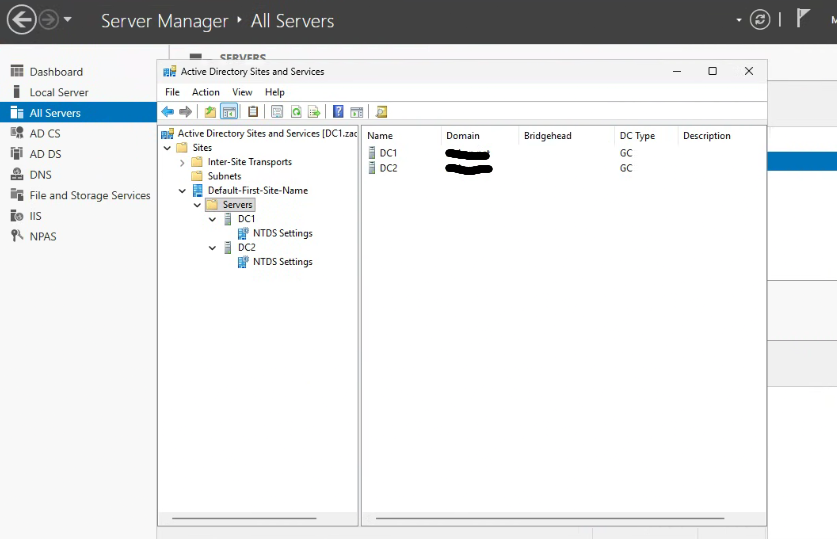
The FSMO roles stay on DC1. These five special roles (schema changes, new domain IDs, the time source for the domain…) are rarely needed, and keeping them on one known DC is the simplest setup. To move them while both DCs run: Move-ADDirectoryServerOperationMasterRole -Identity dc2 -OperationMasterRole 0,1,2,3,4. If DC1 is gone forever, the same command with -Force takes the roles by force. Then you must remove DC1 from AD (metadata cleanup) and never switch it on again.
Step 9: Monitoring and the evaluation clock
Monitoring. If you followed Part 5 of the monitoring series, also run the windows_exporter script from there on DC2, now that it is a DC. It sees by itself that the server is a DC and watches the AD, DNS, DFSR, Netlogon and KDC services. Then add DC2 to the Prometheus job, in the monitoring container:
P=/opt/monitoring/prometheus/prometheus.yml
mkdir -p /opt/monitoring/backup
cp $P /opt/monitoring/backup/prometheus.yml.$(date +%Y%m%d-%H%M%S)
sed -i "/job_name: windows/,/static_configs:/ s|static_configs:|static_configs:\n      - targets: ['192.168.1.22:9182']\n        labels:\n          host: dc2|" $P
grep -A8 'job_name: windows' $P
docker exec prometheus promtool check config /etc/prometheus/prometheus.yml && curl -fsS -X POST localhost:9090/-/reload && echo reloaded
The evaluation clock. Check it from time to time:
slmgr /dlvA window shows Timebased activation expiration (minutes left) and the Remaining Windows rearm count. When fewer than about 10 days are left:
slmgr /rearm
Restart-Computer
Each rearm gives another 180 days, as long as the rearm count is above 0. Put a reminder in your calendar. An expired evaluation shuts itself down every hour.
Troubleshooting
| Problem | Fix |
|---|---|
| No disk in Windows Setup | Load driver from vioscsi\2k25\amd64 on the virtio CD (Step 2). An old virtio ISO without 2k25: download the current one. |
| Promotion stalls at Replicating…, error 1749 | Cancel by restarting the VM. Sign in as a domain admin, run Step 5 again without -Credential. If it then fails with 2542, clean up first (next line). |
| Promotion fails right away with 2542 after an earlier failed attempt | Leftovers from the failed attempt. On DC1: Active Directory Sites and Services → Sites → Default-First-Site-Name → Servers: if dc2 is there without NTDS Settings below it, delete it. On DC2: restart, then rename C:\Windows\NTDS and C:\Windows\SYSVOL to NTDS.old and SYSVOL.old if they exist, and run Step 5 again. |
| The specified domain either does not exist or could not be contacted | DNS on DC2 doesn't point at DC1 (Step 3), or time differs by more than 5 minutes: w32tm /resync. |
| System log: warning event 124, virtualization-based security, at every boot | VBS can't start in this VM. Harmless for a DC; ignore it. |
dcdiag on DC1: DFSREvent failed, events 5014 then 5004 |
The DFSR connection dropped and came back, typically while a VM was being backed up and briefly frozen. Harmless when 5004 (connection restored) follows within minutes. dcdiag shows it for 24 hours. |
| SYSVOL state stays at 2 for hours | On DC2, check the DFS Replication event log for 4614/4604. 4604 means SYSVOL is initialised and shared. |
net share shows no SYSVOL on DC2 |
Same as above: wait for 4604, then Restart-Service Netlogon. |
Did this guide work for you?
Thank you! That helps me keep this guide right.